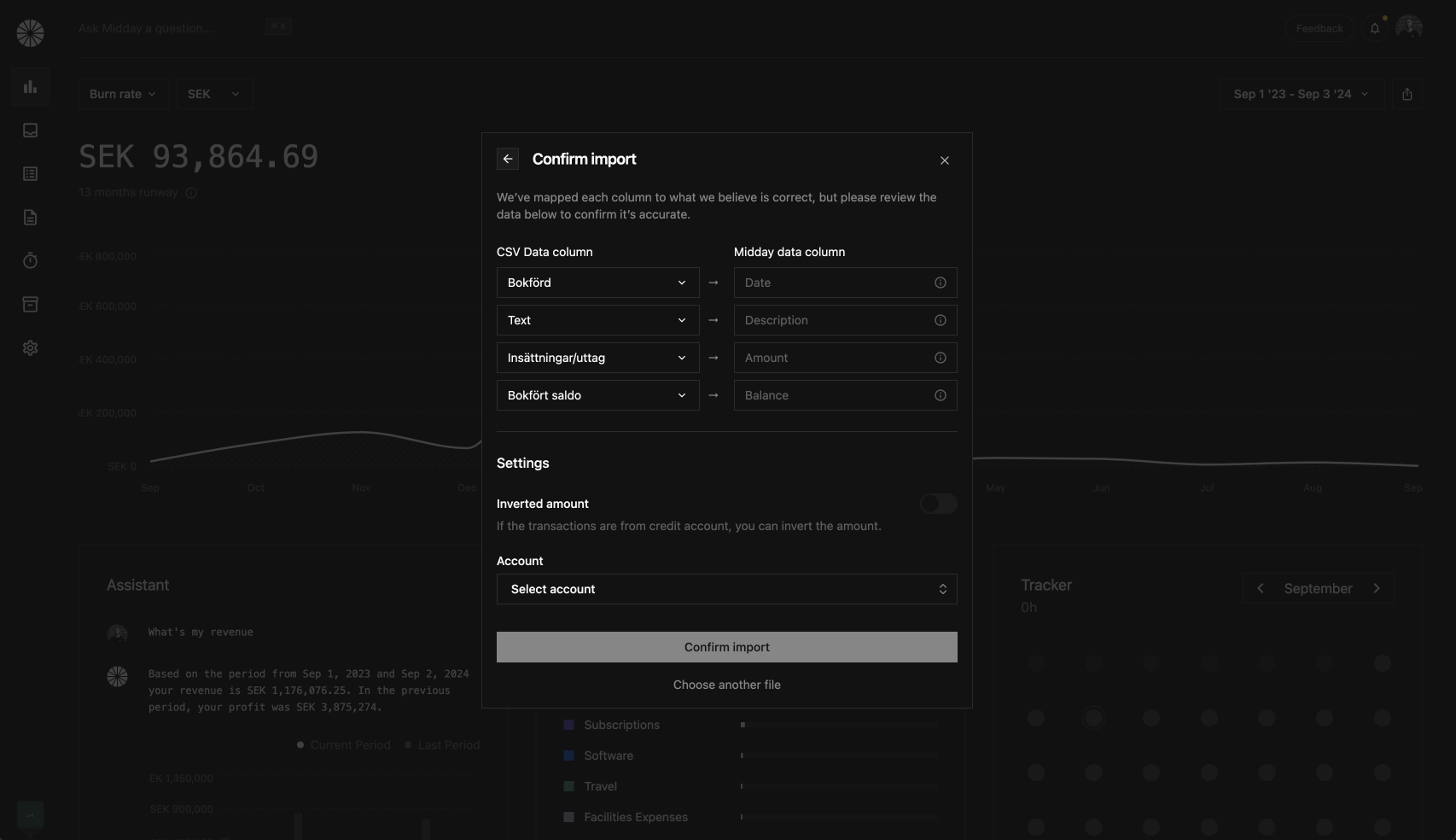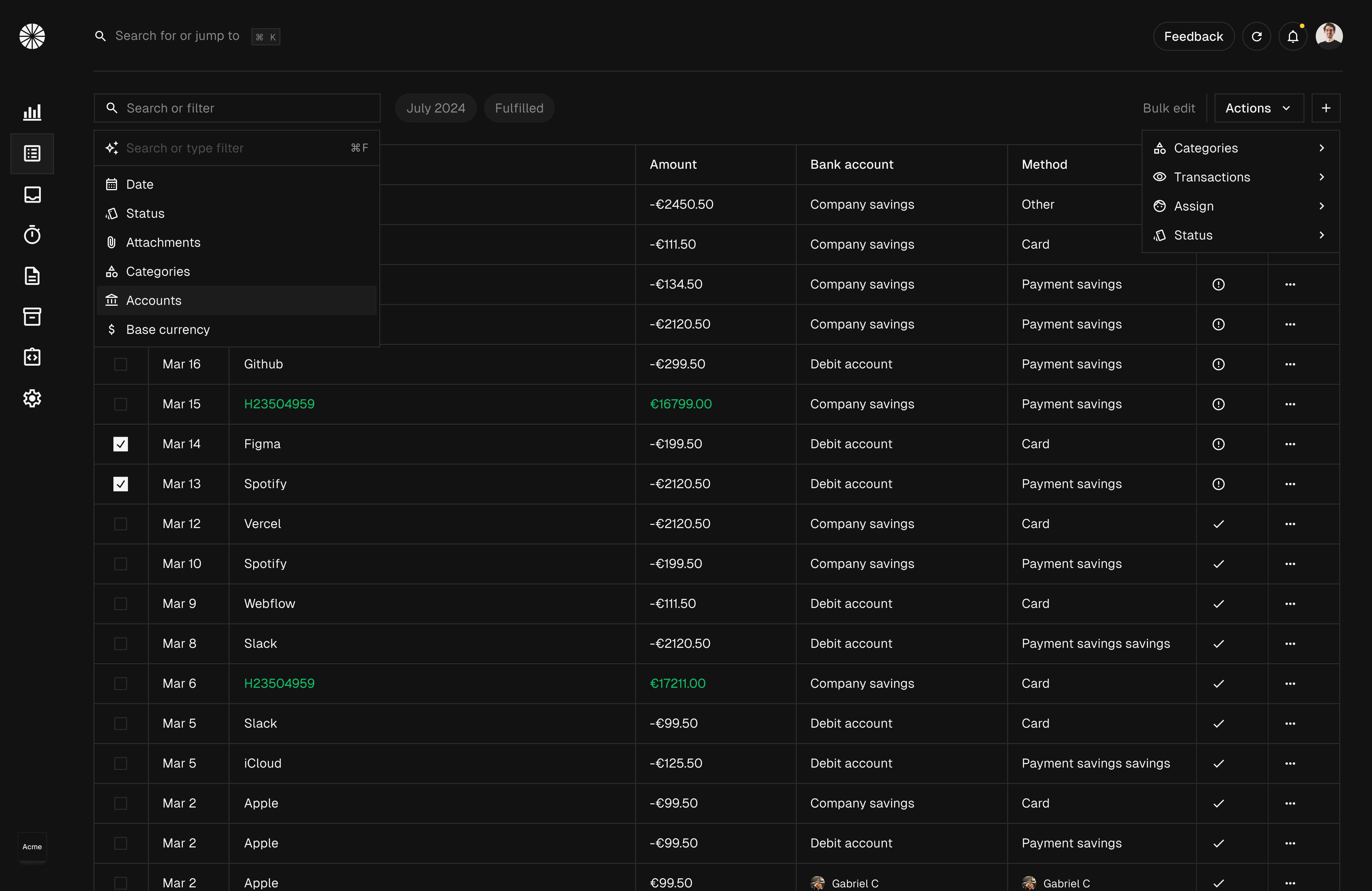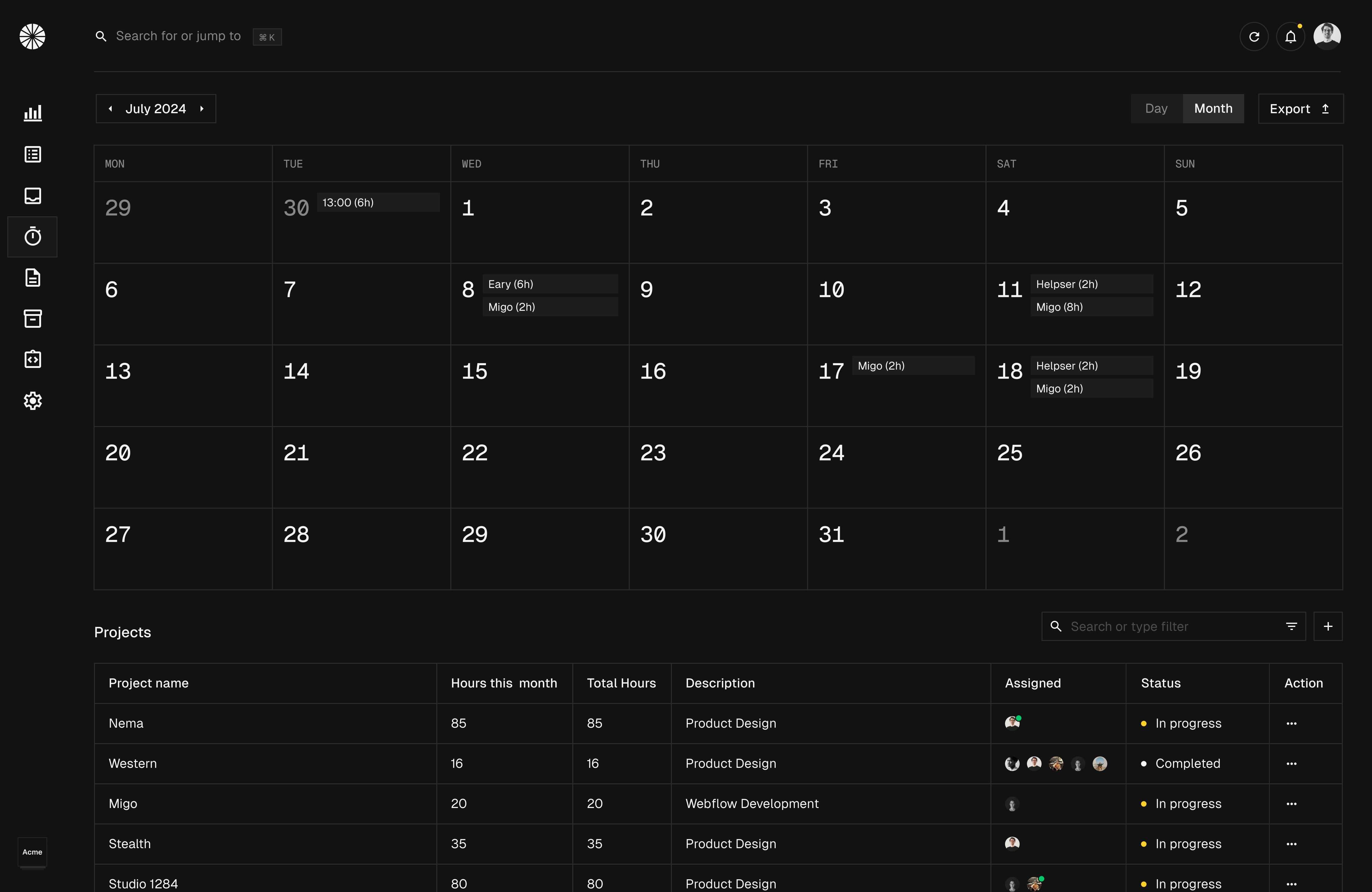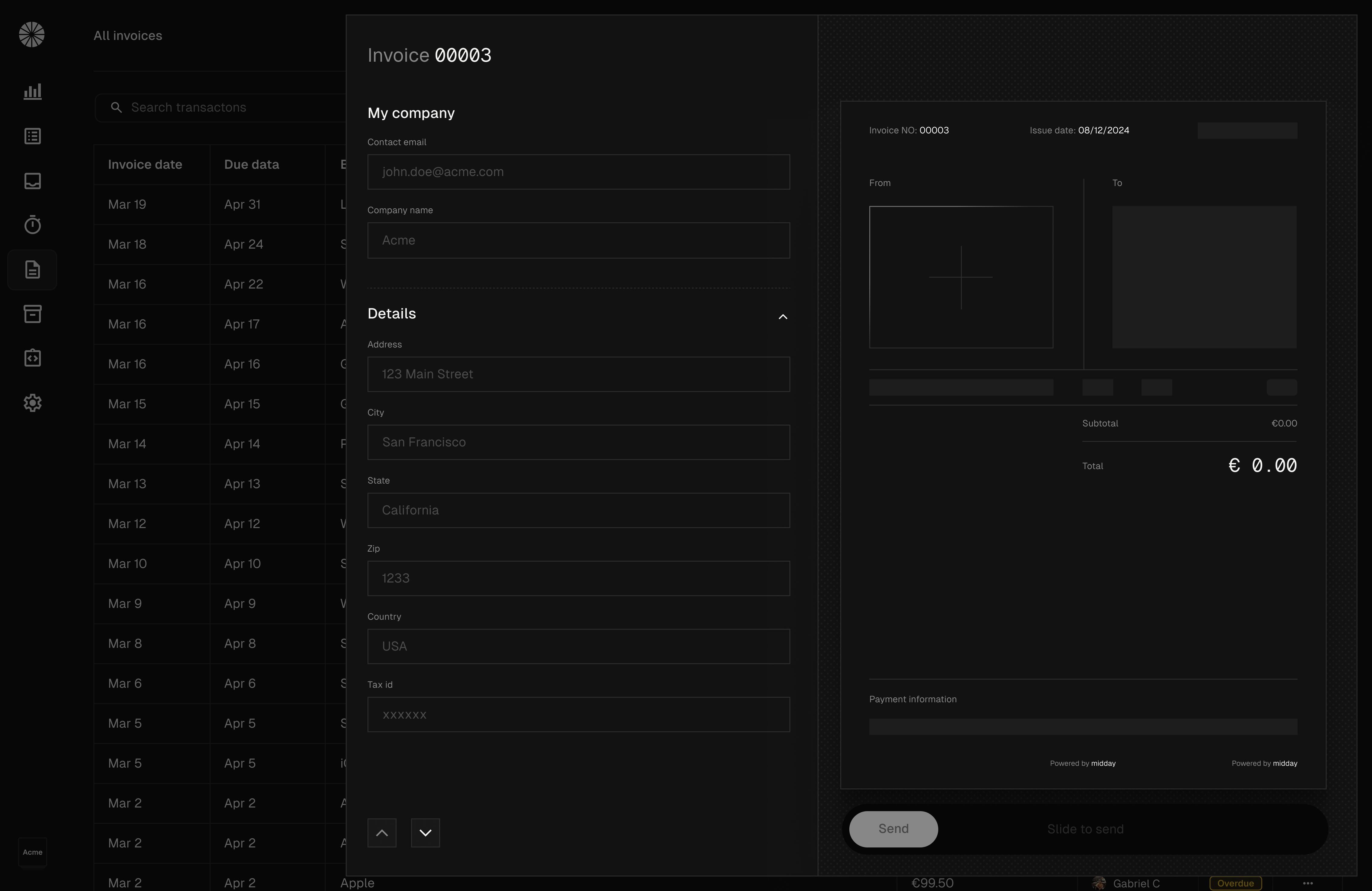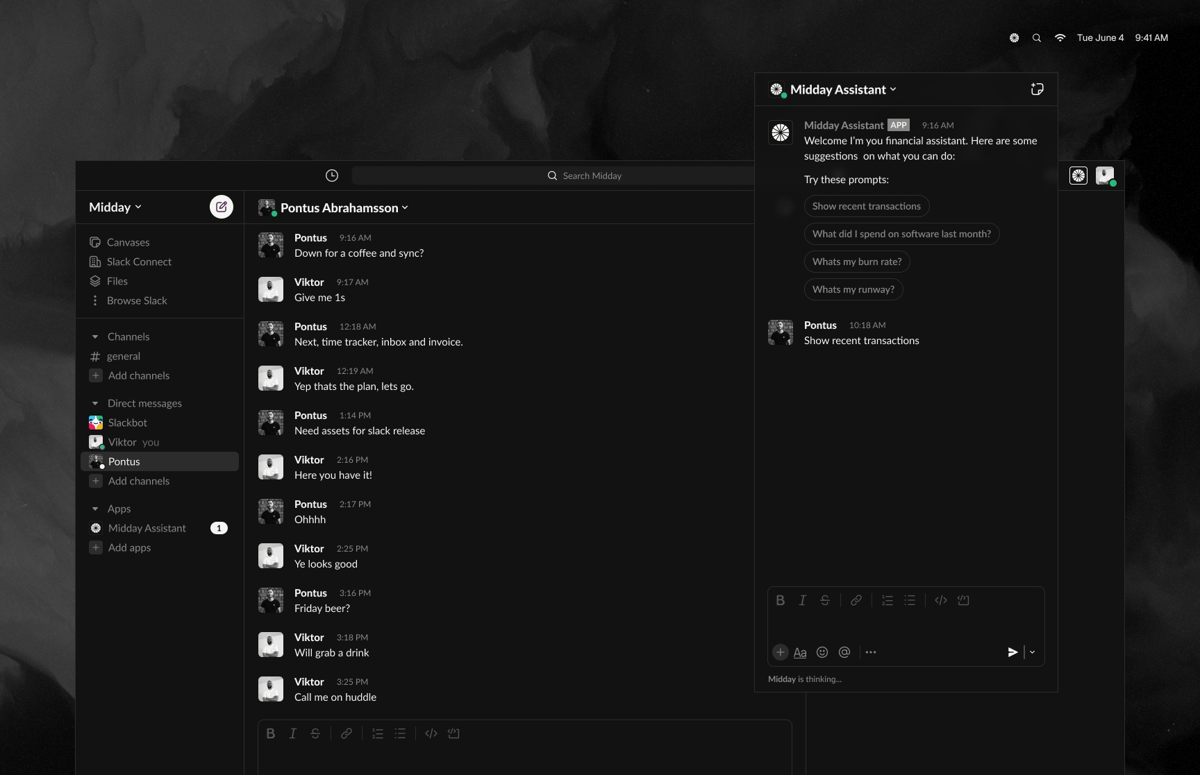
In this technical deep dive, we’ll explore how we built the Midday Slack Assistant by leveraging the Vercel AI SDK, Trigger.dev, and Supabase. Our goal was to create an AI-powered assistant that helps users gain financial insights, upload receipts, and manage invoices—all seamlessly from within their Slack workspace.
Background
Midday already has an assistant available on both web and desktop via Electron, but we haven’t yet built a dedicated mobile app. As we continue iterating on our web app, we plan to eventually create a mobile version using Expo. In the meantime, we wanted to give our users a way to interact with Midday on the go. With that in mind, we turned to Slack, where users can quickly upload receipts and invoices without leaving the app they’re already using for work.
Goals
We aimed to enable our users to:
- Upload receipts and invoices, and match them to transactions.
- Query their financial status (e.g., burn rate, cash flow).
- Receive notifications about transactions.
Slack Assistant
Slack recently introduced a new messaging experience for app agents and assistants, making them more discoverable and accessible in user workflows. This update allows developers to build AI assistants based on their own APIs, seamlessly integrated into the Slack interface.
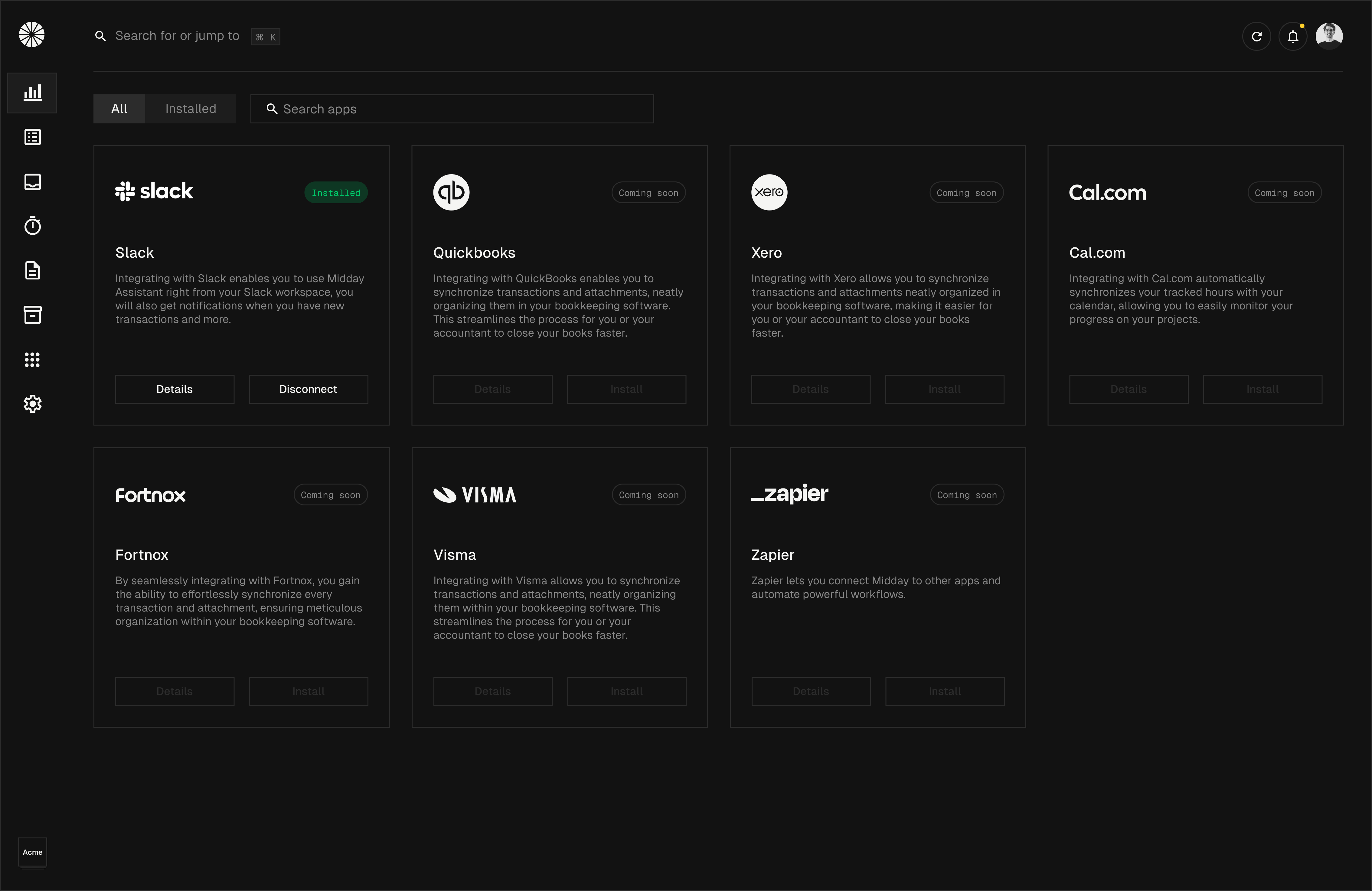
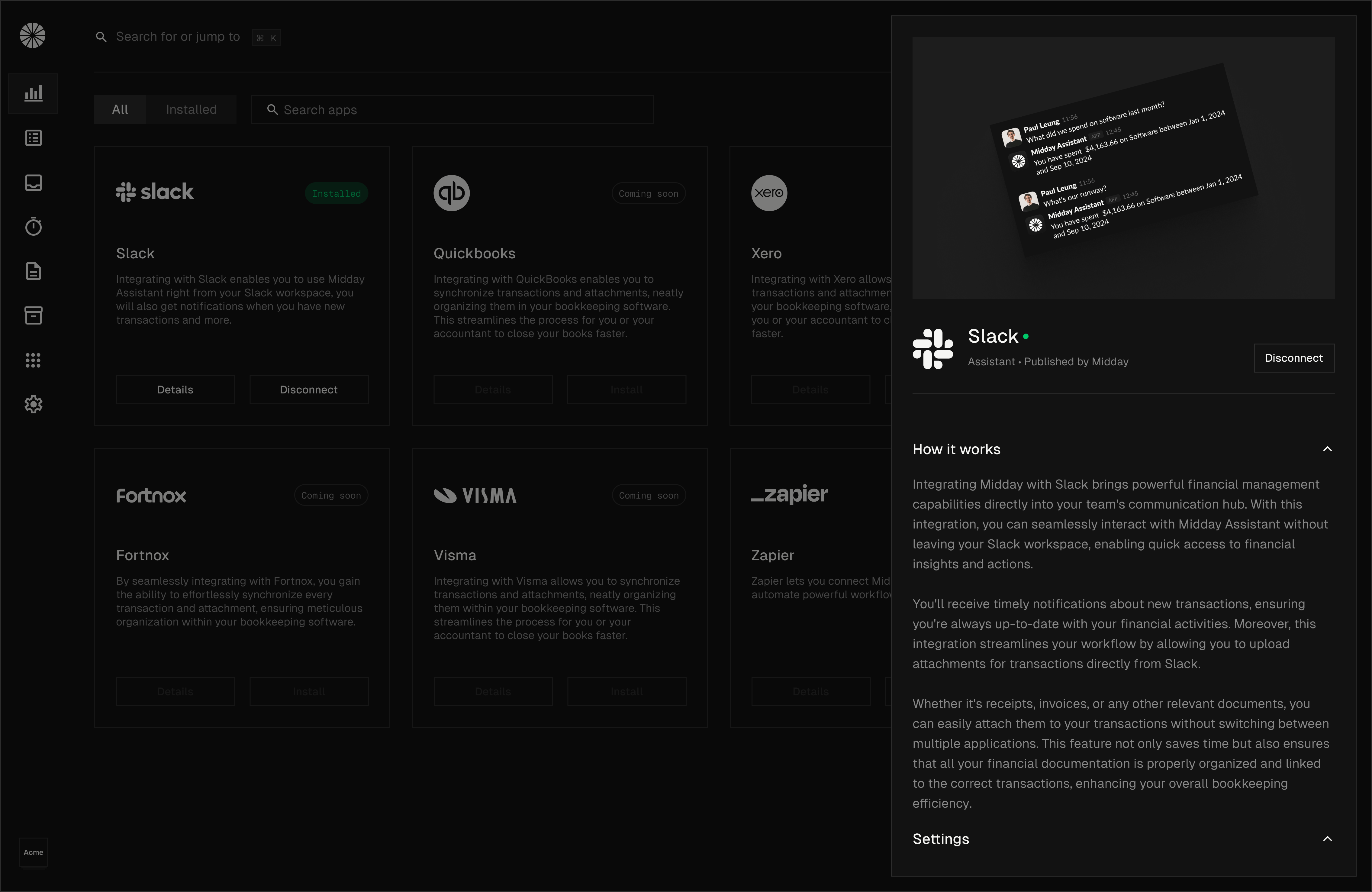
When users install our Slack app from the Apps section within Midday, we obtain the necessary permissions to interact with the Slack API, send messages, and listen to events.
Authentication
To connect the Slack app to a user’s workspace, we utilize Slack’s OAuth flow to retrieve an access token with the required scopes. These scopes include:
assistant_thread_context_changed: Detects changes in the assistant thread context.assistant_thread_started: Tracks when an assistant thread starts.file_created: Monitors file uploads.message.channel: Captures messages posted in public channels.message.im: Captures direct messages.
Once authenticated, we store this data in our apps table along with the team ID and access token, structured as a JSONB column for flexibility.
Event Subscriptions
Here’s where the magic happens: We use a Next.js route to handle incoming Slack events and route them to our internal handler. This handler checks the event payload to determine the appropriate action. If it detects a file upload, it triggers a background job via Trigger.dev. If it’s a message, we forward it to our Assistant logic.
File Upload Handling
When a file upload event occurs, we send the file to a background job and save it in our Supabase database. Using OCR, we extract key details such as amount, currency, date, and merchant from the receipt. Then, we attempt to match the data with existing transactions in our system using Azure Document Intelligence Models.
Here’s a quick demo of how the file upload works in Slack:
Slack Assistant Features
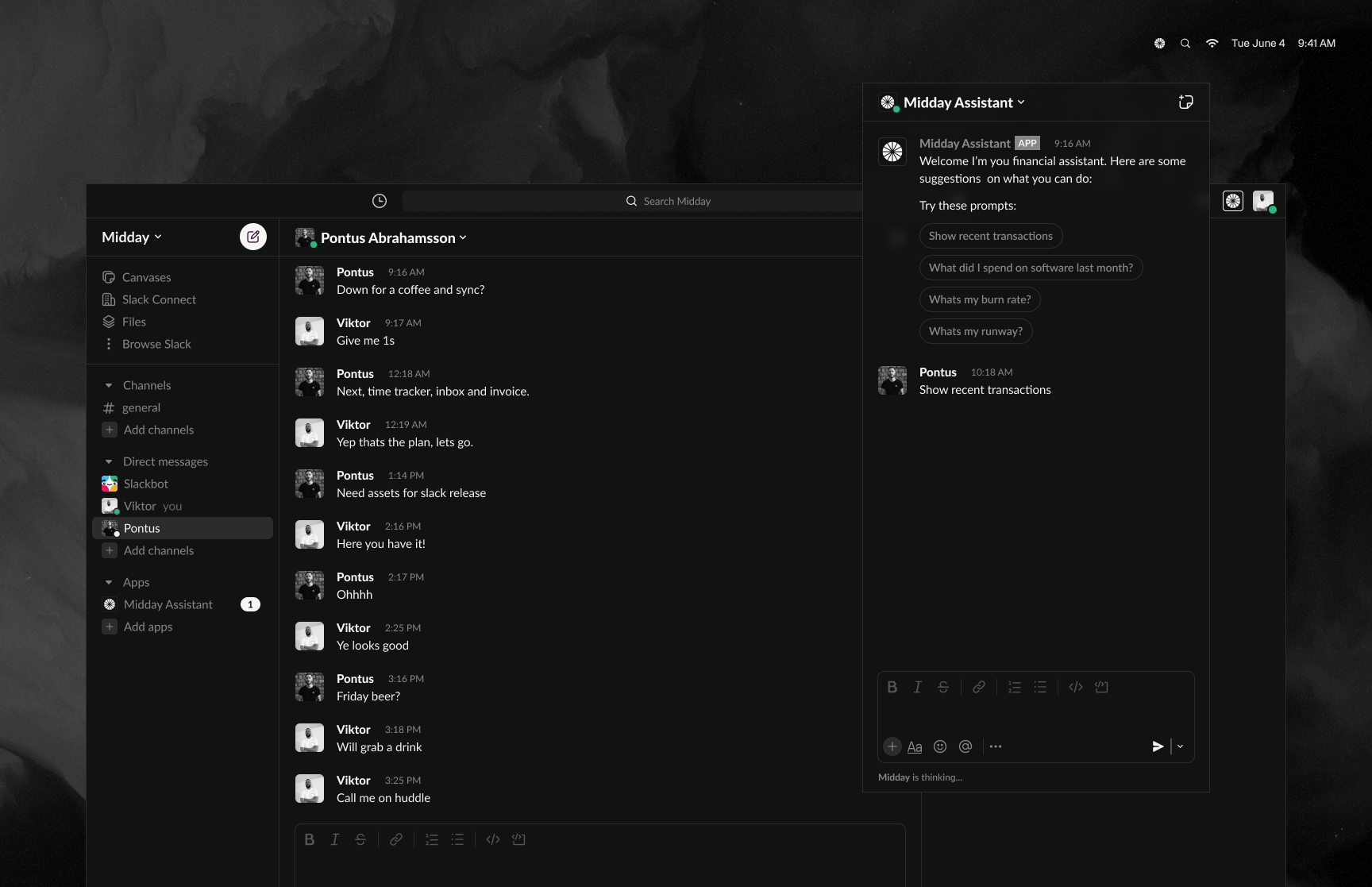
When you open the Slack Assistant, you’re greeted with a welcome message and a set of suggested actions. This welcome message is triggered by the assistant_thread_started event and looks like this:
import type { AssistantThreadStartedEvent, WebClient } from "@slack/web-api";
export async function assistantThreadStarted(
event: AssistantThreadStartedEvent,
client: WebClient,
) {
const prompts = [
{ title: "What’s my runway?", message: "What's my runway?" },
];
try {
await client.chat.postMessage({
channel: event.assistant_thread.channel_id,
thread_ts: event.assistant_thread.thread_ts,
text: "Welcome! I'm your financial assistant. Here are some suggestions:",
});
await client.assistant.threads.setSuggestedPrompts({
channel_id: event.assistant_thread.channel_id,
thread_ts: event.assistant_thread.thread_ts,
prompts: prompts.sort(() => 0.5 - Math.random()).slice(0, 4),
});
} catch (error) {
console.error("Error in assistant thread:", error);
await client.assistant.threads.setStatus({
channel_id: event.assistant_thread.channel_id,
thread_ts: event.assistant_thread.thread_ts,
status: "Something went wrong",
});
}
}
When the user selects one of the suggested prompts, we trigger the assistant_thread_message event. Based on the message, we then use the appropriate tool with the Vercel AI SDK.
To generate the response, we use the generateText function with the OpenAI model. This approach makes it easy to switch between different models and frameworks as needed.
It's crucial to use the thread_ts parameter to ensure the response is sent back to the same thread, rather than creating a new one.
We also handle the request using waitUntil to ensure Slack receives a 200 response within 3 seconds. This prevents Slack from retrying the request, which we want to avoid.
Here is the code for the assistant thread message:
import { openai } from "@ai-sdk/openai";

import { createClient } from "@midday/supabase/server";

import { generateText } from "ai";

import { startOfMonth, subMonths } from "date-fns";

import { getRunwayTool, systemPrompt } from "../../tools";


export async function assistantThreadMessage(

  event: AssistantThreadStartedEvent,

  client: WebClient,

  { teamId }: { teamId: string },

) {

  const supabase = createClient({ admin: true });


  await client.assistant.threads.setStatus({

    channel_id: event.channel,

    thread_ts: event.thread_ts,

    status: "Is thinking...",

  });


  const threadHistory = await client.conversations.replies({

    channel: event.channel,

    ts: event.thread_ts,

    limit: 5,

    inclusive: true,

  });


  const lastTwoMessages = threadHistory.messages

    ?.map((msg) => ({ role: msg.bot_id ? "assistant" : "user", content: msg.text || "" }))

    .reverse();


  const { text } = await generateText({

    model: openai("gpt-4o-mini"),

    maxToolRoundtrips: 5,

    system: systemPrompt,

    messages: [

      ...(lastTwoMessages ?? []),

      { role: "user", content: event.text },

    ],

    tools: { getRunway: getRunwayTool({ defaultValues, supabase, teamId }) },

  });


  if (text) {

    await client.chat.postMessage({

      channel: event.channel,

      thread_ts: event.thread_ts,

      blocks: [{ type: "section", text: { type: "mrkdwn", text } }],

    });

  } else {

    await client.chat.postMessage({

      channel: event.channel,

      thread_ts: event.thread_ts,

      text: "Sorry, I couldn't find an answer to that.",

    });


    await client.assistant.threads.setStatus({

      channel_id: event.channel,

      thread_ts: event.thread_ts,

      status: "",

    });

  }

}
Demo of the Slack Assistant
Midday is fully open-source, and you can find the pull request for the Slack Assistant and Apps here.
You can also try Midday for your own business by signing up here.